Farsi Nevis is now on Mac
Farsi Nevis started on iPhone, then came to iPad. Today it’s on Mac too.
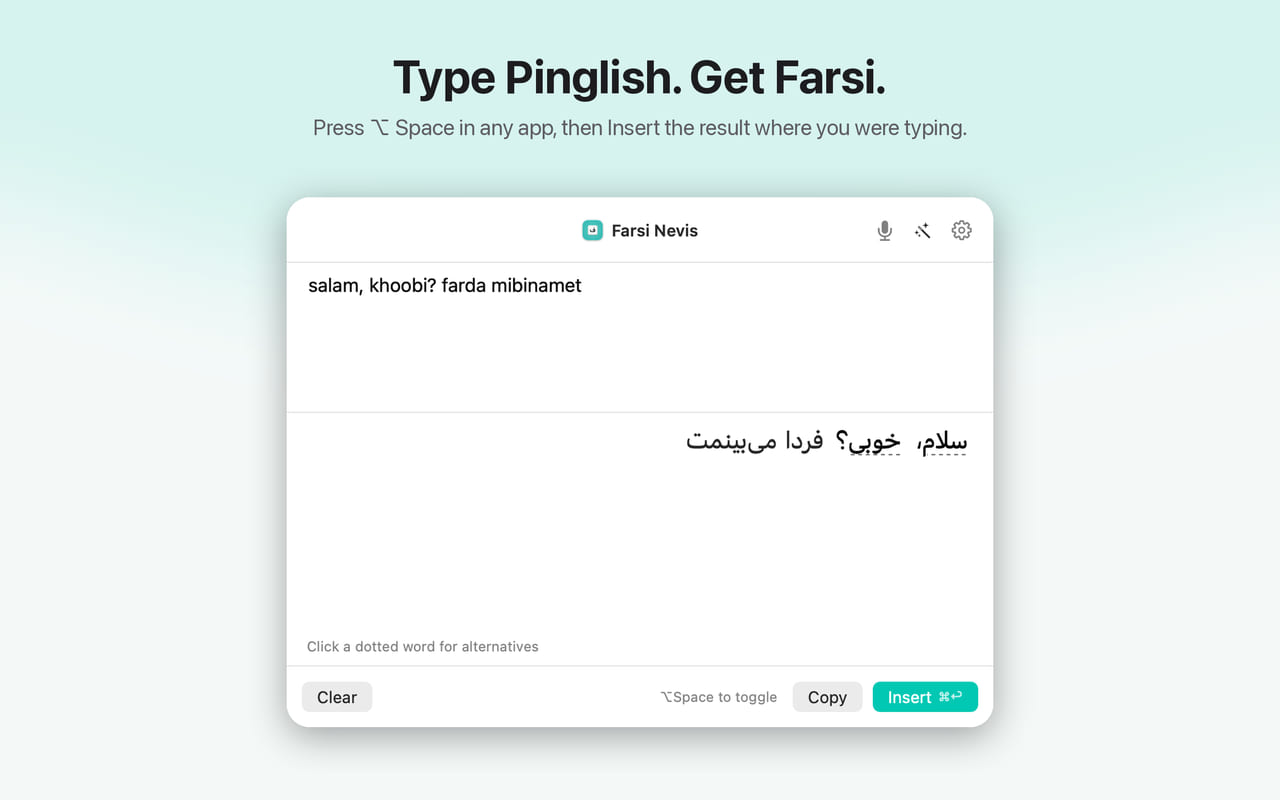
Type Pinglish, get Farsi
Press Option-Space in almost any app and a small panel opens over whatever you’re working on. Write “salam khoobi” and get «سلام خوبی». Click a dotted word to pick another spelling or an emoji. When it looks right, Copy puts the Farsi on your clipboard, or Insert pastes it straight into the app you came from.
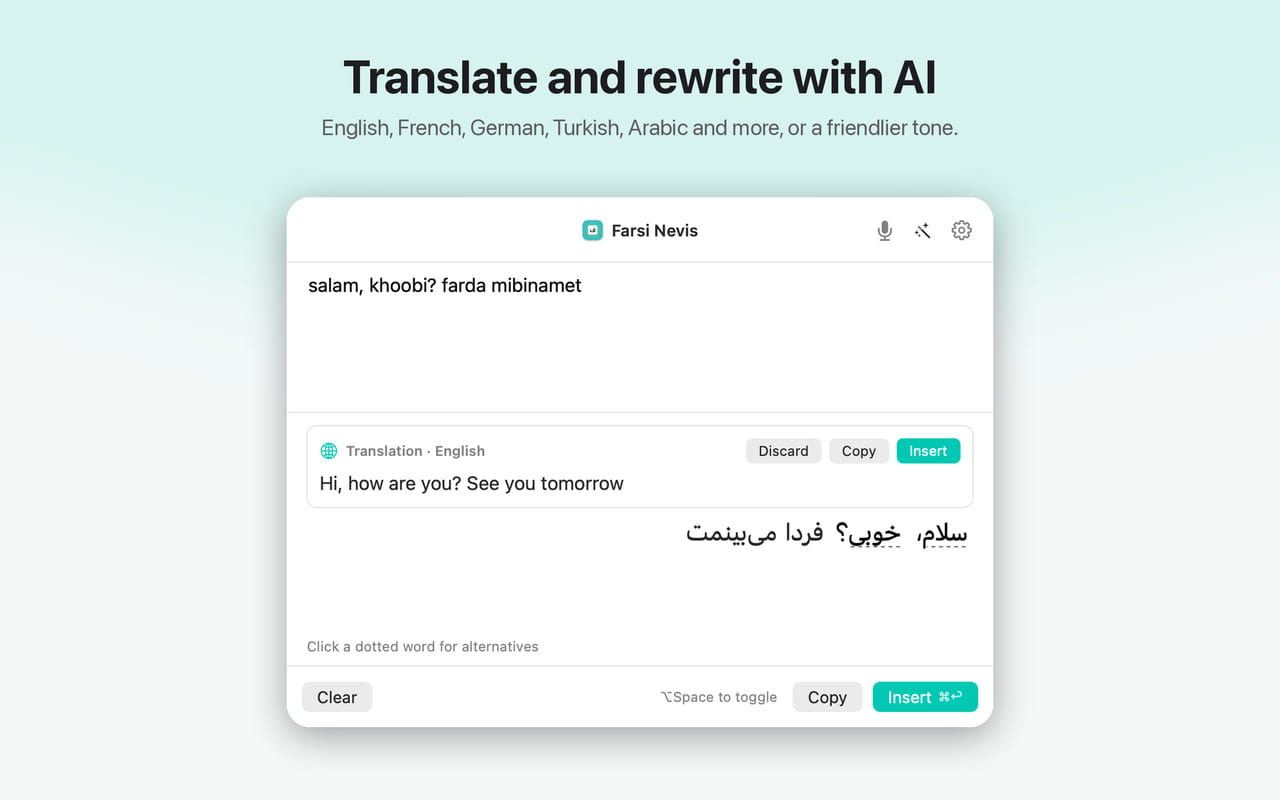
Translate and rewrite with AI
The same tools you know from the keyboard are in the panel: translation into 12 languages, AI writing tools to improve, proofread, restyle, or summarize, and Farsi dictation that types as you talk.
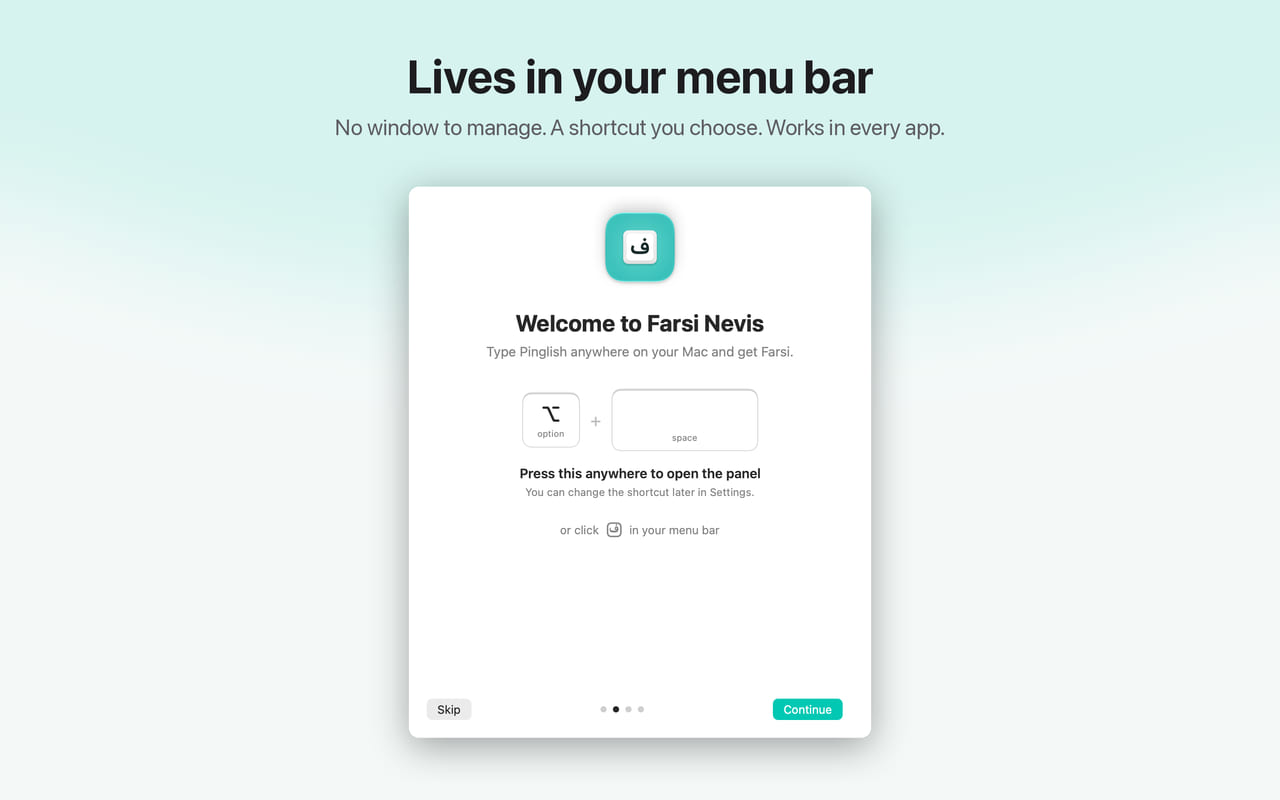
Lives in your menu bar
There’s no Dock icon and no window to manage. Use your shortcut, or click the icon in the menu bar. You can also:
- Convert from the right-click menu — select Pinglish in almost any app and choose Services → Convert Pinglish to Farsi
- Convert your clipboard from the menu bar icon
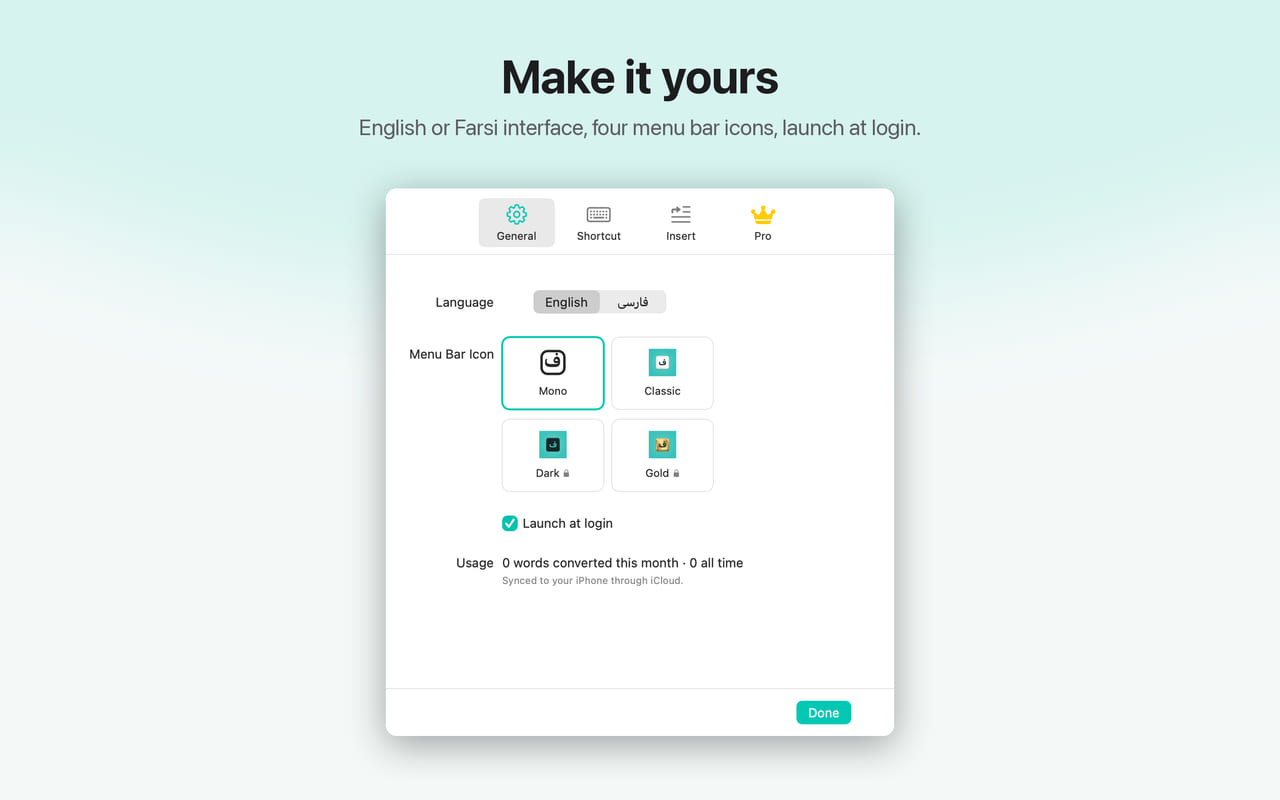
- Choose an English or Farsi interface, pick a menu bar icon, and launch at login
A short welcome guide walks you through setup the first time.
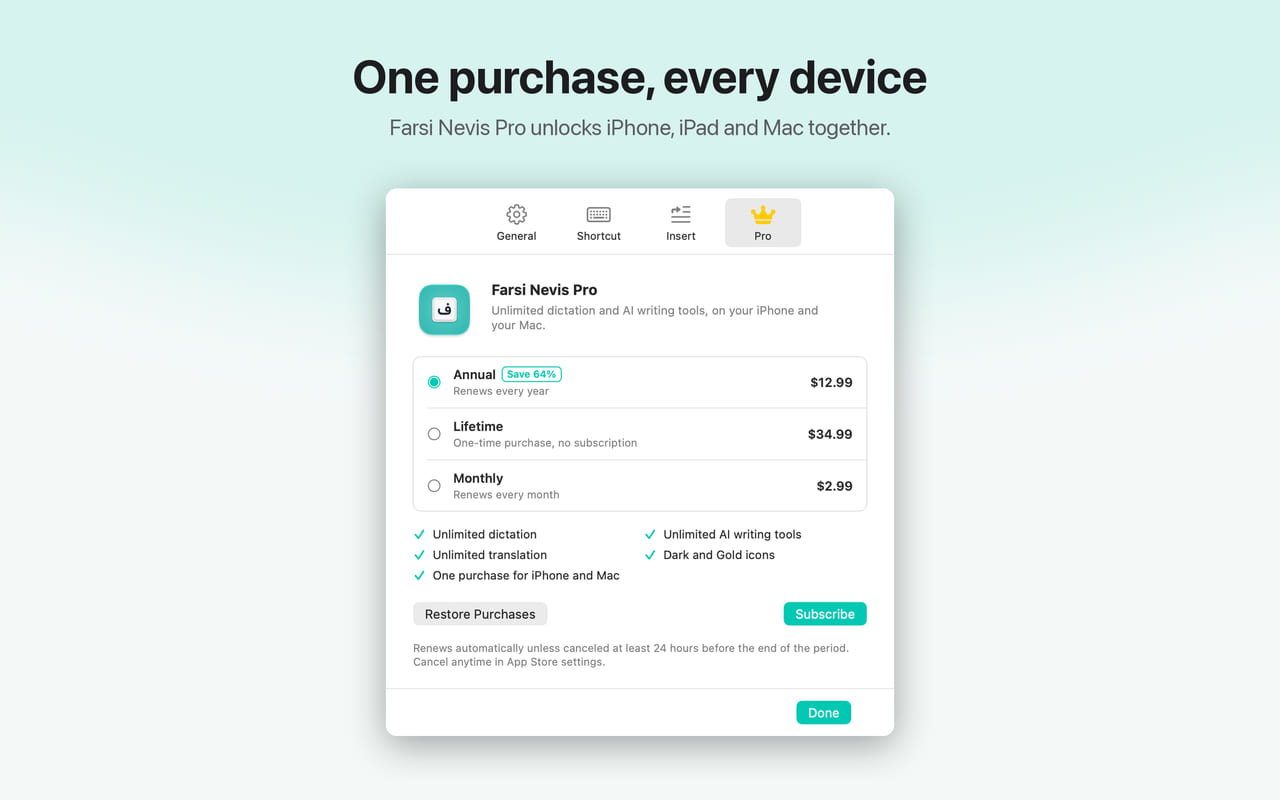
One Pro purchase, every device
Farsi Nevis Pro now covers your iPhone, iPad, and Mac when they use the same Apple ID. Already Pro on your iPhone? Open Settings → Pro on your Mac and click Restore Purchases. Without Pro, your Mac gets its own free monthly allowance for dictation, translation, and AI writing tools.
Farsi Nevis for Mac is free on the Mac App Store and requires macOS 14 or later. The Mac setup guide has everything you need to get started.
Farsi Nevis (فارسی نویس)
Type Pinglish, get Farsi — a smart keyboard for iPhone and iPad, and a menu bar app for Mac